Admin guide
Running the store from the dashboard: roles, products, orders, promotions.
Signing in
The sign-in page has two doors: Admin and Seller. Only staff roles pass the Admin door — admin, employee and preview — and only an approved, active seller passes the Seller door. Any other account is refused with a clear message even with valid credentials: a customer is told the account has no dashboard access, a seller on the Admin tab is pointed at the Seller tab, an applicant is told the application is still under review, a rejected or terminated seller reads the reason. Every refusal — including a signed-out visit to any dashboard or seller page — lands on /unauthorized, which explains what is wrong and offers the way out. preview is the read-only demo login — it sees every screen and the API rejects all its writes.
Roles
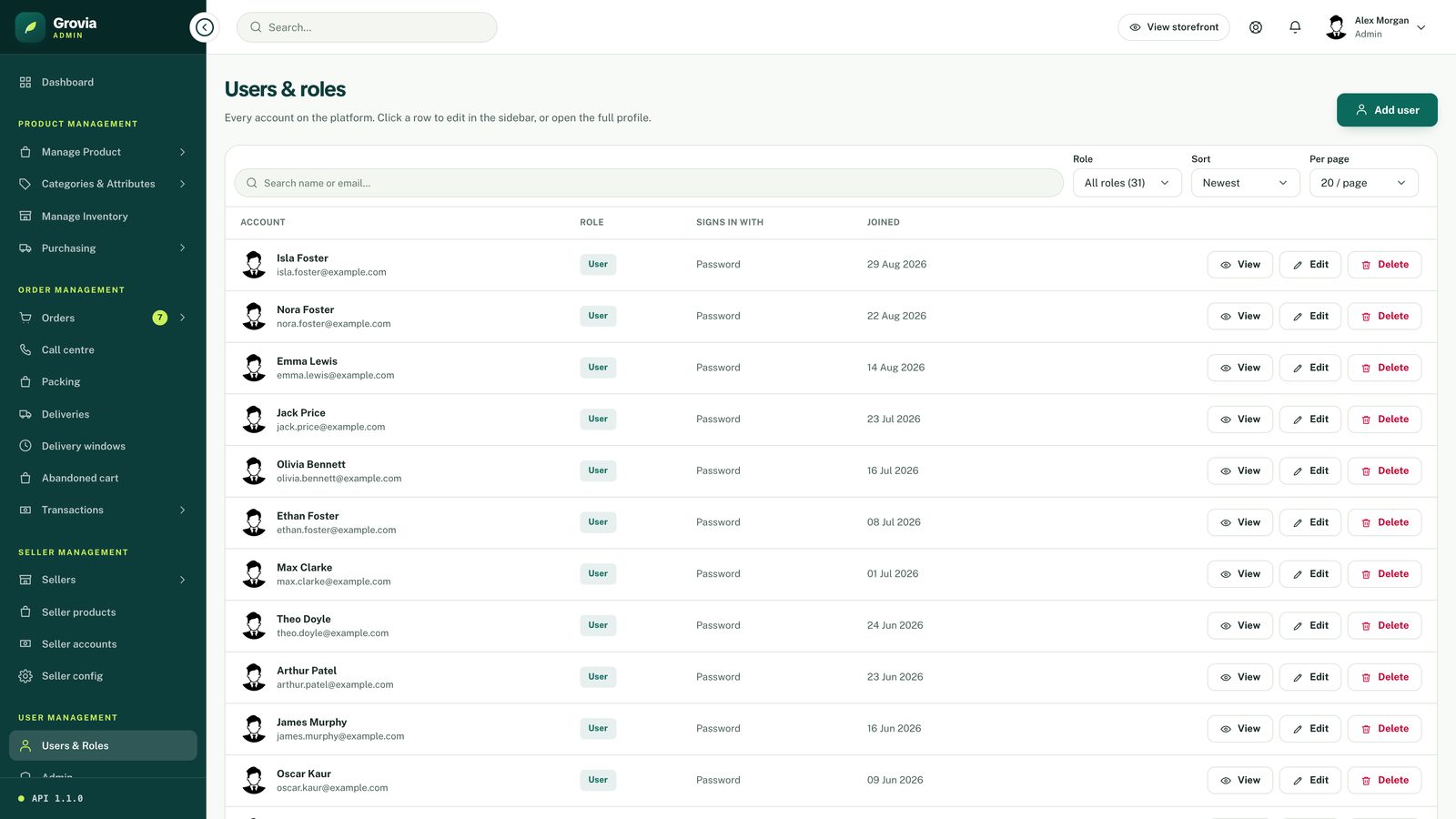
| Role | Can |
|---|---|
admin | Everything, including granting roles |
employee + job role | packer, deliveryman, accounts, incharge, call_center — operational screens; accounts/incharge may change payment status |
seller | The seller portal at /seller only — their own products, stock, orders, reviews, earnings and payouts; never an admin screen |
preview | Read every screen, write nothing |
user | The storefront only |
Roles are granted, never claimed. Every signup is user. Use Users & Roles → Add user to create an account with a role, and Change role to move an existing one. The seller role is the exception: it is granted by activating a seller application and dropped by terminating it — never assigned by hand.
Inside the dashboard, roles map to named permissions in src/lib/auth/access.ts (accounts:manage, orders:write, settings:view, …). The sidebar, every page gate and every action button ask the same can(permission), on the server through auth() and in the browser through useAuth(). The API still authorises every request on its own — the permission map only keeps the UI honest.
Products
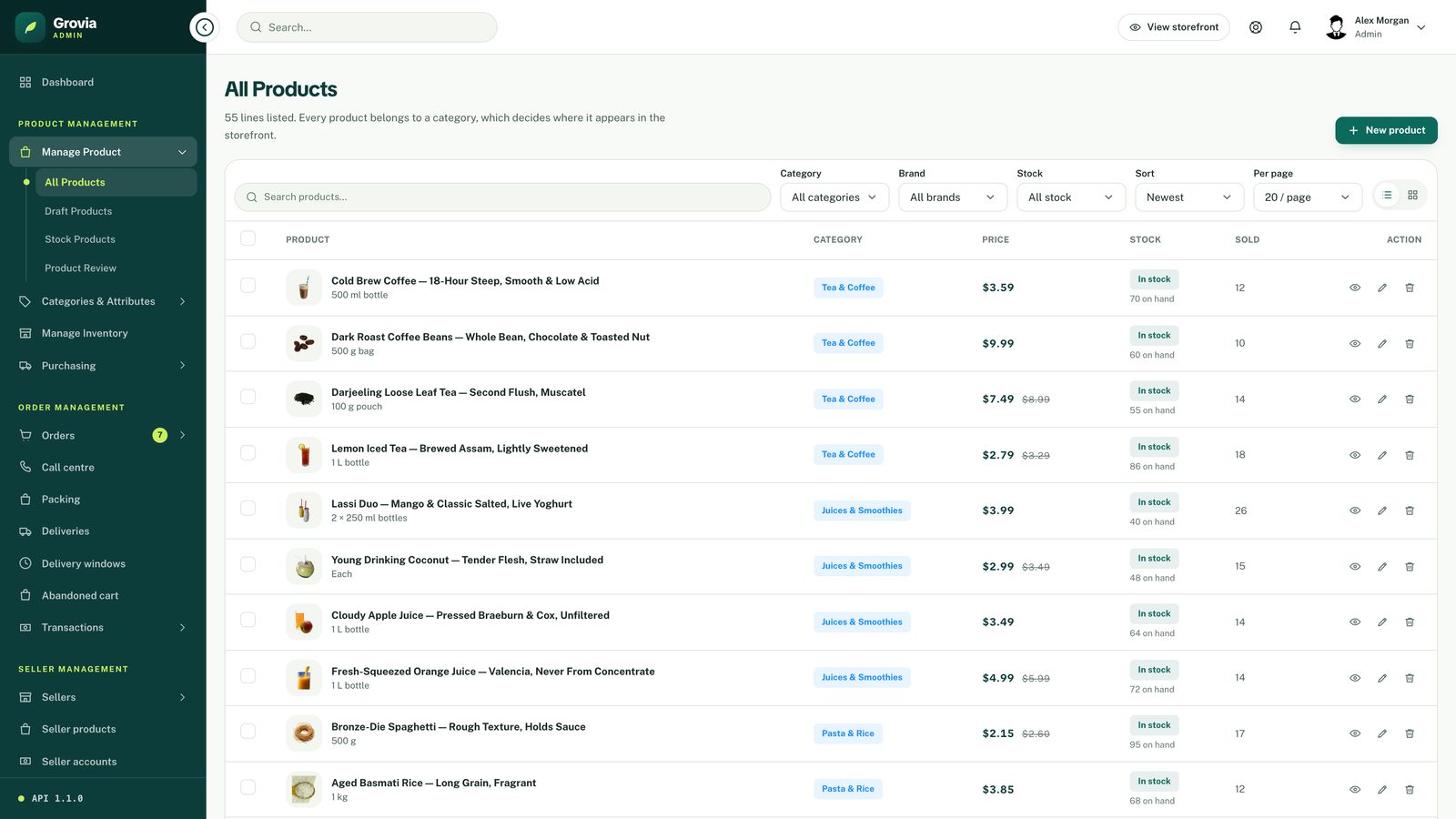
- Category and brand are required — the form refuses to submit without both. Seed them first, or create them under Categories & Attributes.
- Images are staged, not uploaded. Add and remove freely; nothing reaches ImageKit until Save. On save the API uploads new files, deletes removed ones, then writes the product. Cancel costs nothing.
images[0]is the primary image. Deleting a product deletes its images.- Product images are transparent cut-outs and render on a tinted tile with
object-contain— never crop them.
Orders
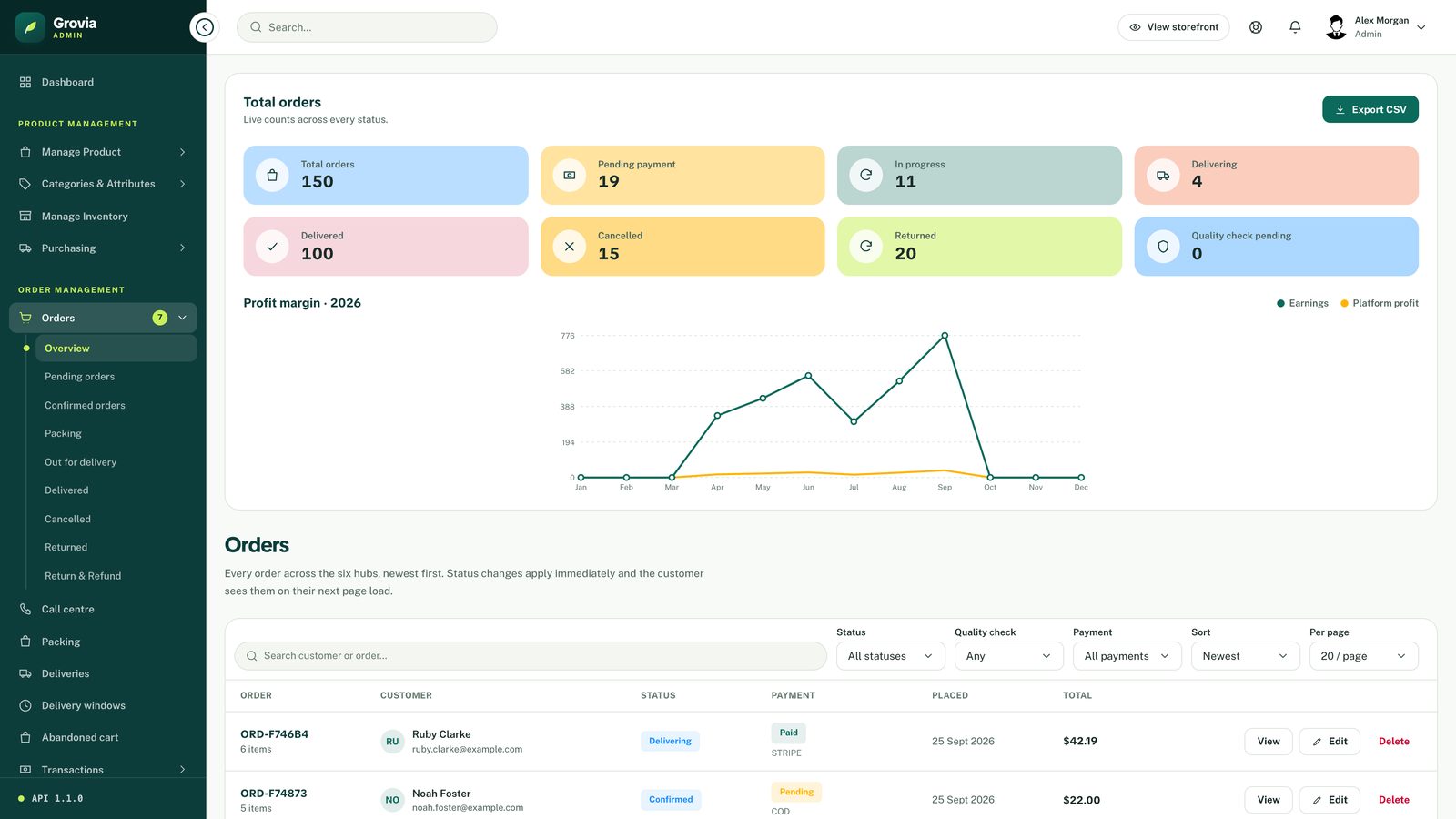
The lifecycle: pending → confirmed (order and address checked) → packing → packed → delivering → delivered → completed, plus cancelled from any open stage and returned after delivery. Nobody moves an order backwards; employees only move into the stages their job role owns. Stock is reserved when the order is placed: a cancellation while pending puts it straight back, a cancellation after confirmation or an accepted return opens a quality check on the order — record how many picks of each line came back sellable and only those return to the shelf. A card order cannot move to delivered until it is paid, and a cash order until the driver has flagged the cash collected; nothing moves to completed until the money is in the company's account. Line edits are repriced from the catalogue — a submitted totalAmount is discarded. Returns start on the storefront: a customer with a delivered order chooses the lines and quantities coming back and says why; the request appears under Return & Refund with those lines, and approving it refunds the card payment through Stripe (or records a manual refund for cash), marks the order returned and opens the quality check on the returned lines.
Errors also reach Sentry when the DSN variables in the root .env are set — one project per app — with the request id on every API error so a customer's reference finds the event; the dashboard's API status page keeps the built-in record regardless.
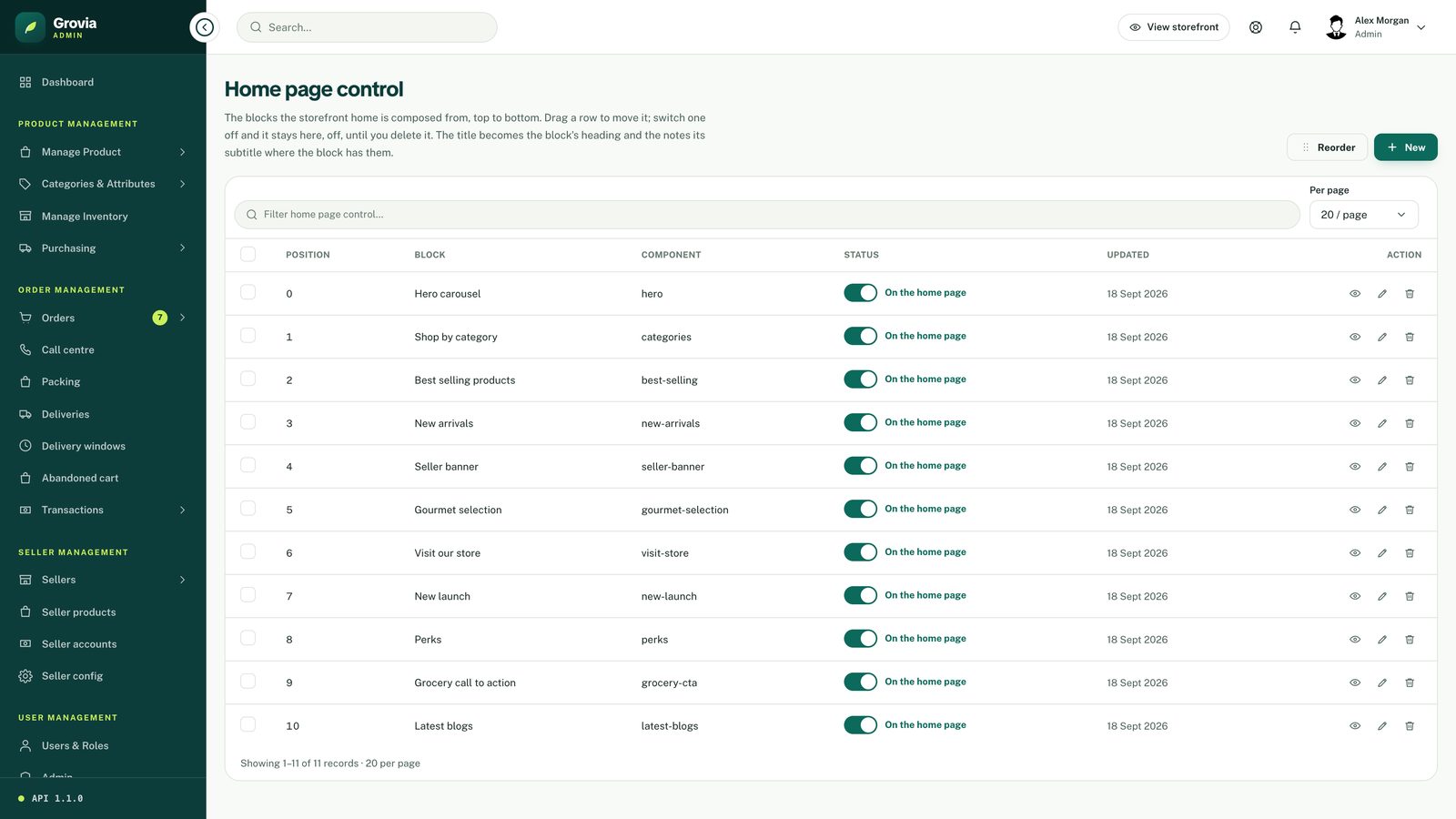
The storefront home is composed from Website config → Home Page Control: one row per block (hero, categories, best selling, new arrivals, seller banner, gourmet selection, Visit our store, new launch, perks, grocery call to action, latest blogs), ordered by weight. Switch a row off to drop the block; its title becomes the heading and its notes the subtitle where the block has them.
Low stock is alerted on the crossing: when a line first reaches the catalogue threshold, administrators get an in-app digest (and an email when the Low stock touchpoint is on), once, until it is restocked and drops again. The worker checks on a schedule set under Configuration → Catalogue; every order checks its own lines; Stock Products has a Check now.
Customers are told at every step: each move an order makes — confirmed, packed, out for delivery, delivered, completed, cancelled, returned, refunded — raises an in-app notification (Account → Notifications, with the unread count on the header bell) and, for the statuses configured under Email Config, an email.
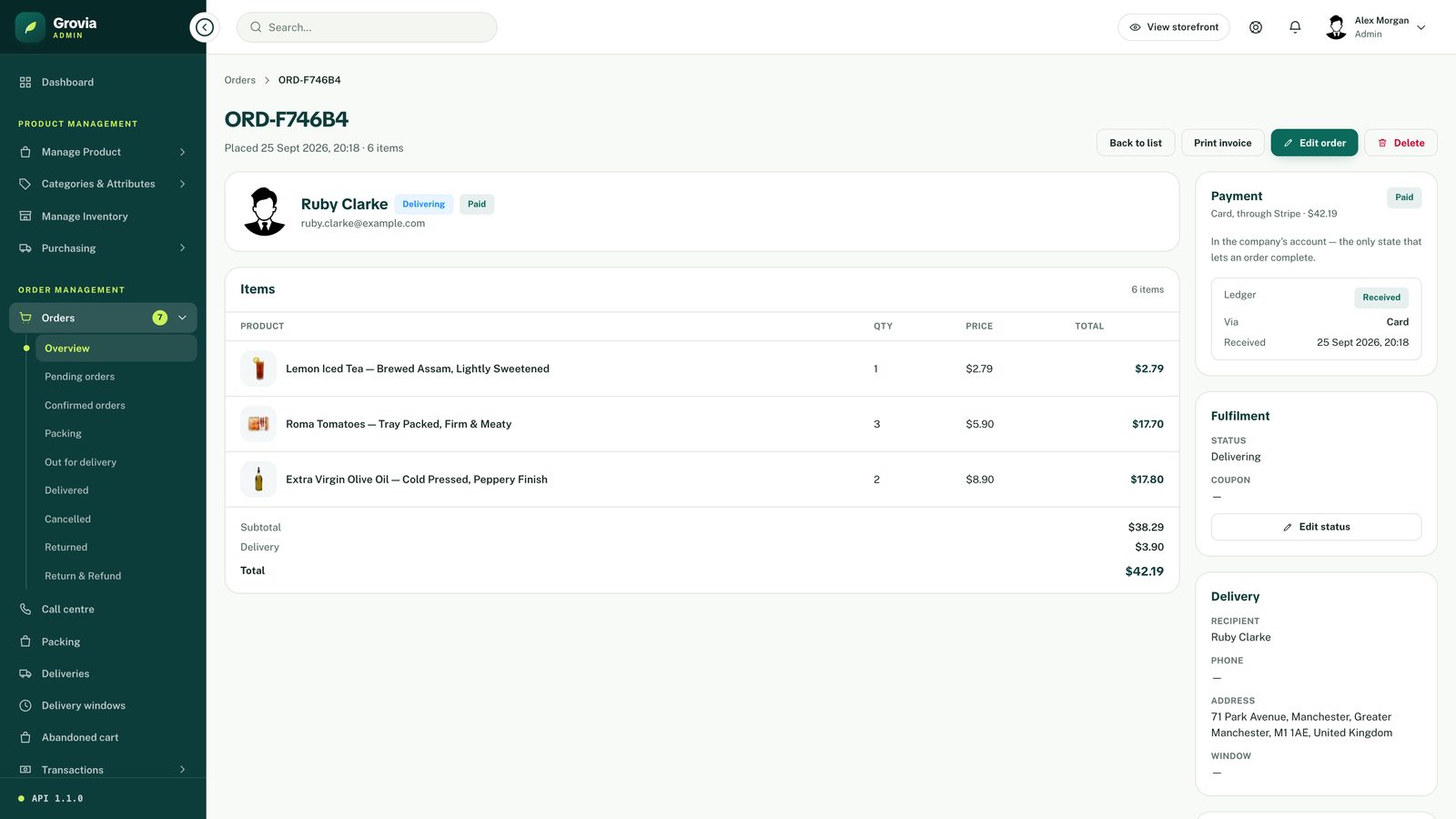
Call centre is the queue of orders placed and not yet confirmed: the customer's phone, the delivery address and window, the lines and how it is paid. Confirm sends the order to the packers; cancelling needs a reason the customer reads and puts the stock back.
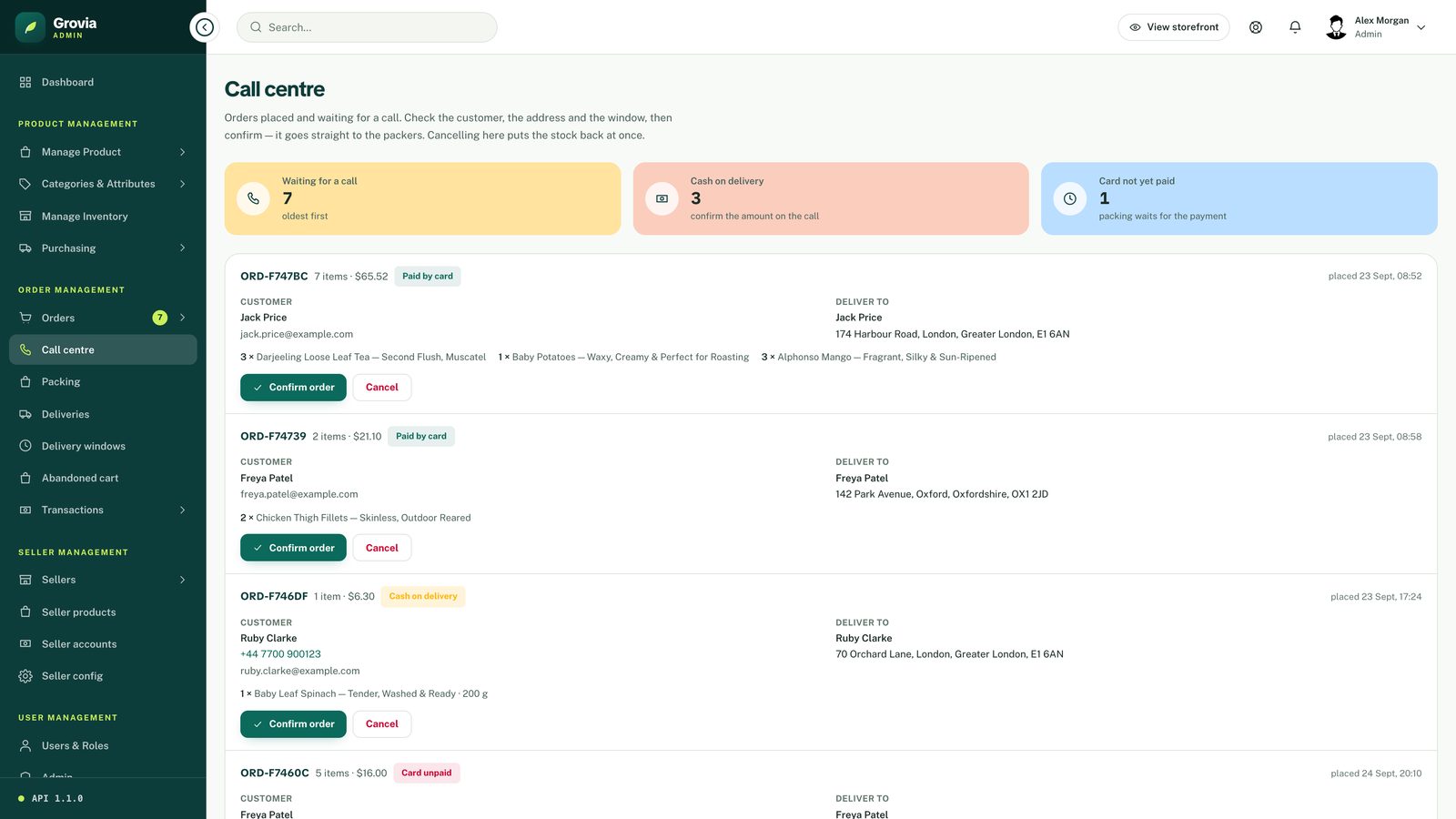
Packing shows confirmed orders ready to pick and the orders being packed under each packer's name with the full pick list. A packer takes an order (or in-charge hands it to one), picks and bags it, and marks it packed — it then appears on the delivery board.
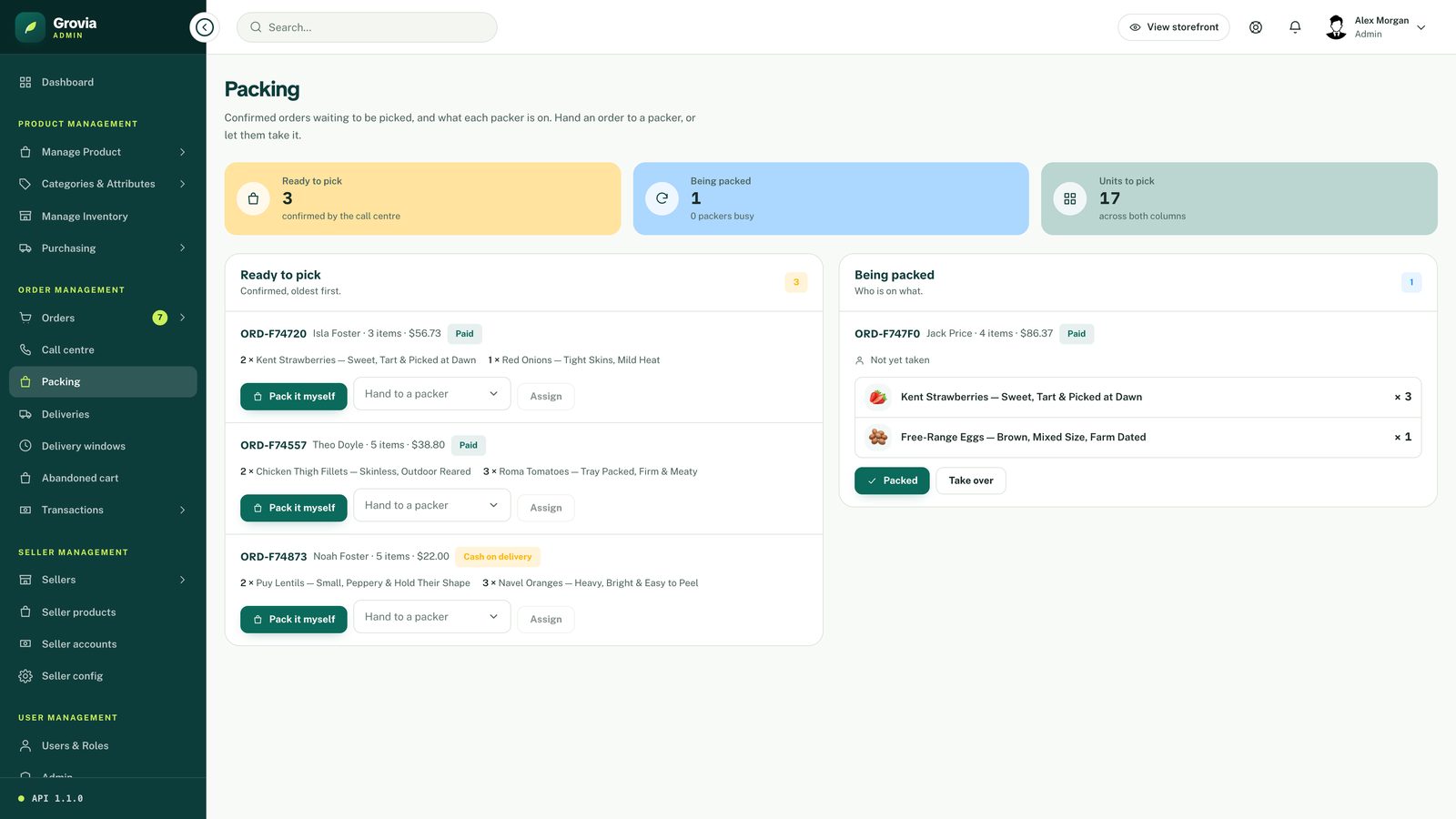
Reports & Analytics — Sales reports, Top products and Seller performance — and Promotional Deals → Clearance Deal are live reports over a date range: preset ranges or a custom from / to, a chart and tables, and an Export CSV of exactly what is on screen. Recognised sales are delivered and completed orders.
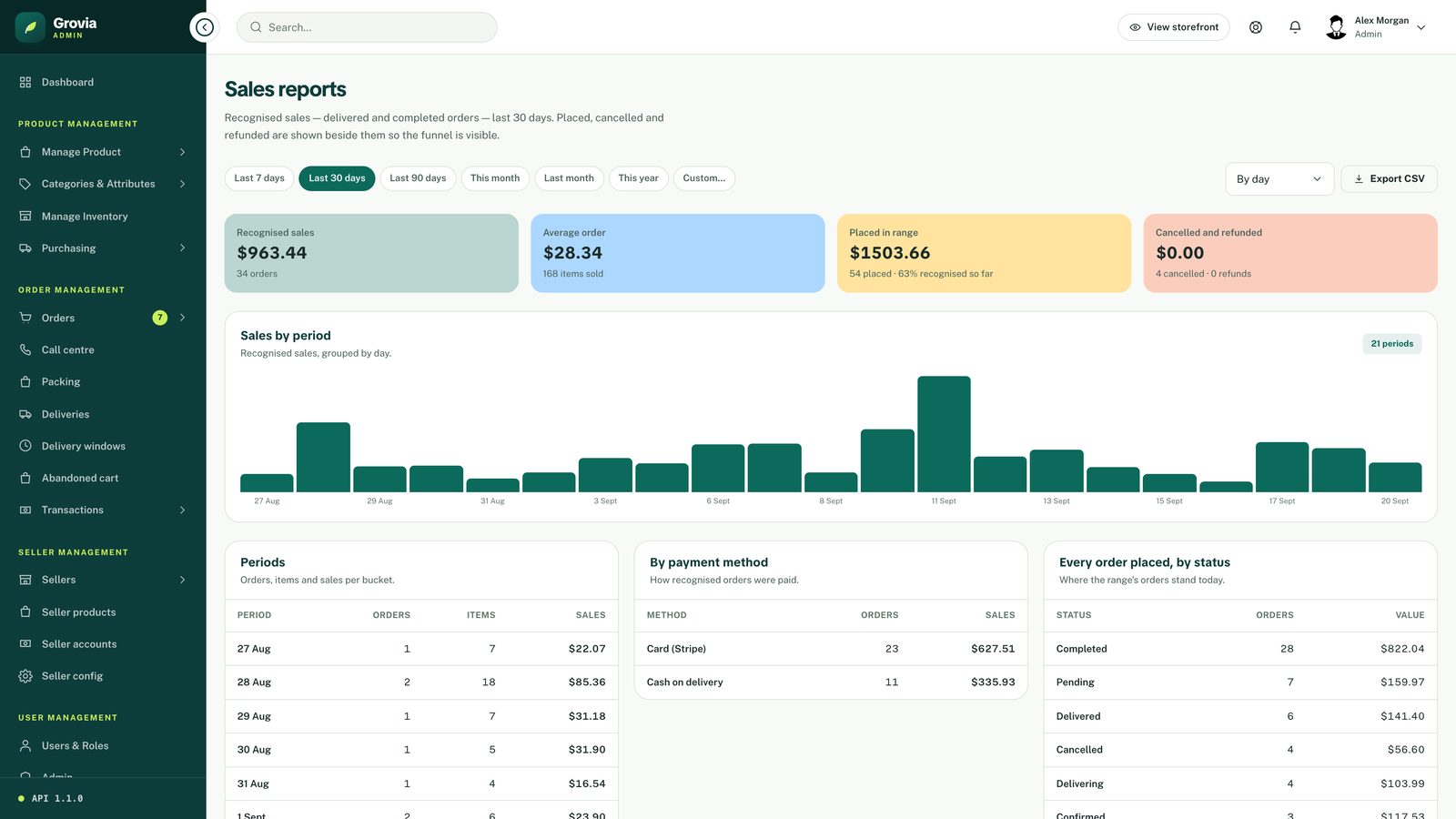
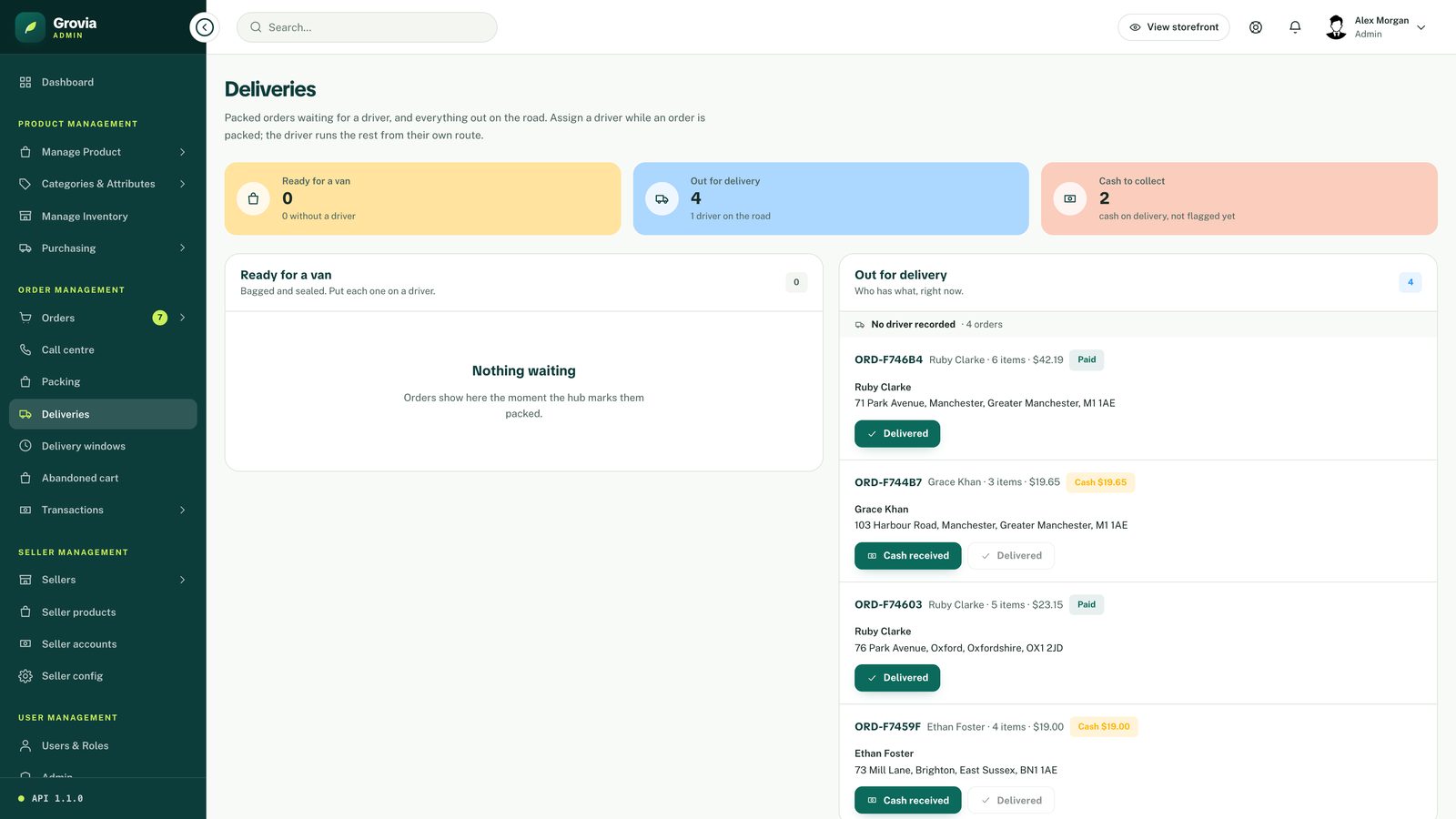
Deliveries is the delivery board. In-charge staff and administrators put each packed order on a driver and see who has what on the road; a driver opens the same page as their own route — start the delivery, flag the cash at the door on a cash order, mark it delivered.
The sidebar's Orders entry opens to an *Overview* (tiles, the year's chart and the full table) and one page per stage — Pending, Confirmed, Packing, Out for delivery, Delivered, Cancelled, Returned. Every page carries the same filters (payment, quality check, search, sort, page size) and its own CSV export.
Transactions and the cash desk
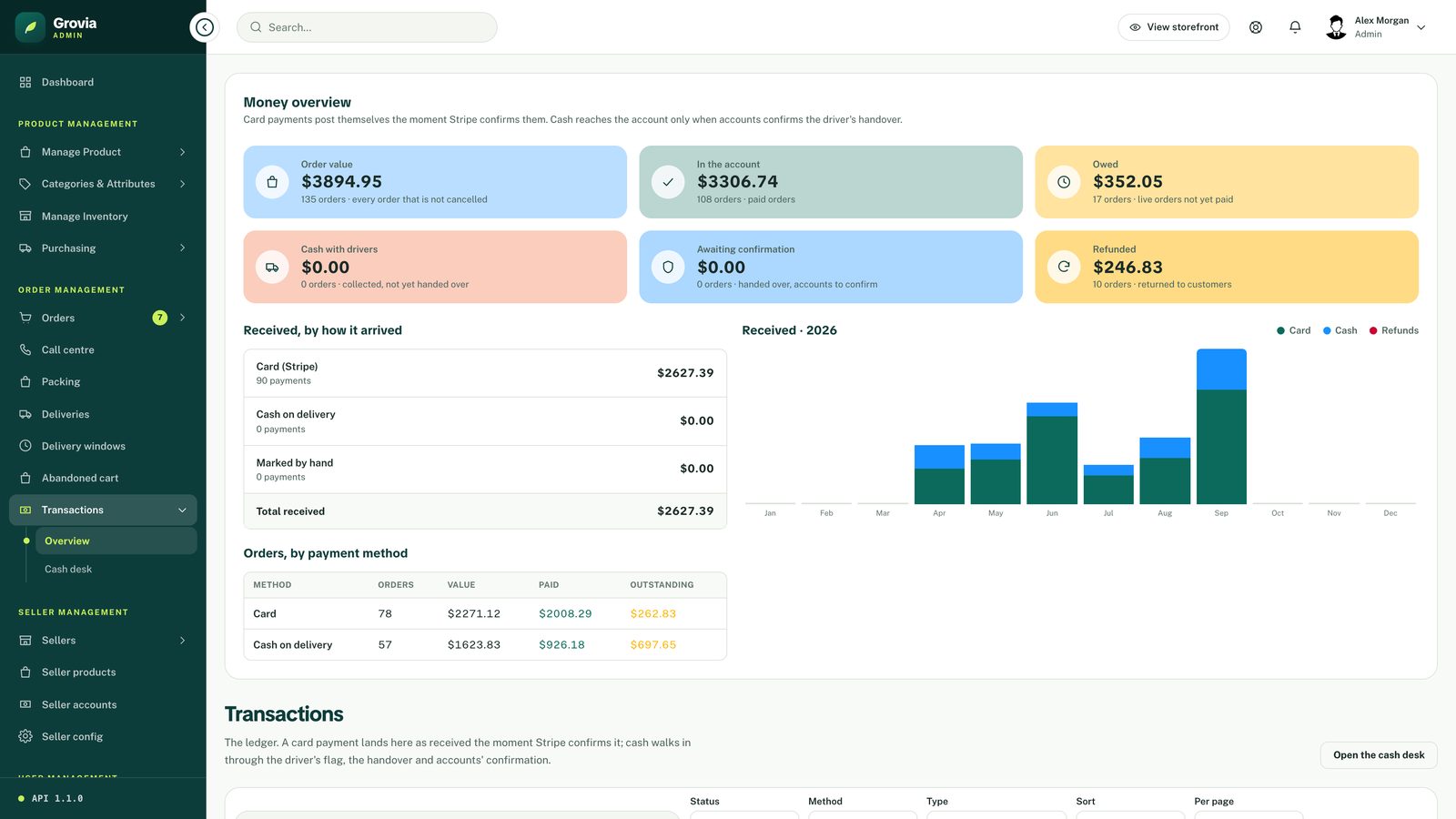
Every payment and refund is a row in the ledger (/transactions): a card payment posts itself as *received* the moment Stripe confirms it; marking an order paid or refunded by hand posts a row stamped with who did it. Cash on delivery follows the money in three stamped steps: the driver flags the cash collected at the door from the order's Payment card (needed before the order can be delivered), hands it over at the Cash desk (/transactions/cash), and accounts confirms it — only then is the order *paid*, and only a paid order can be completed. The overview band shows order value, what is in the account, what is owed, cash with drivers, cash awaiting confirmation and refunds, received by method and the year by month.
Who does what: an employee always has a job — packer, deliveryman, accounts, in-charge or call centre — set on the Users & Roles screen. Drivers see only the cash desk (their own bag); accounts and in-charge see the overview, the ledger and every driver's cash; administrators see everything.
Promotions
- Coupons — percentage or fixed, usage caps, date ranges.
- Sale promos — themed landing pages at
/sales/[slug]on the storefront, with a countdown and "add all" action. - Flash sales, featured and clearance deals — merchandising lists surfaced on the home page.
Sellers
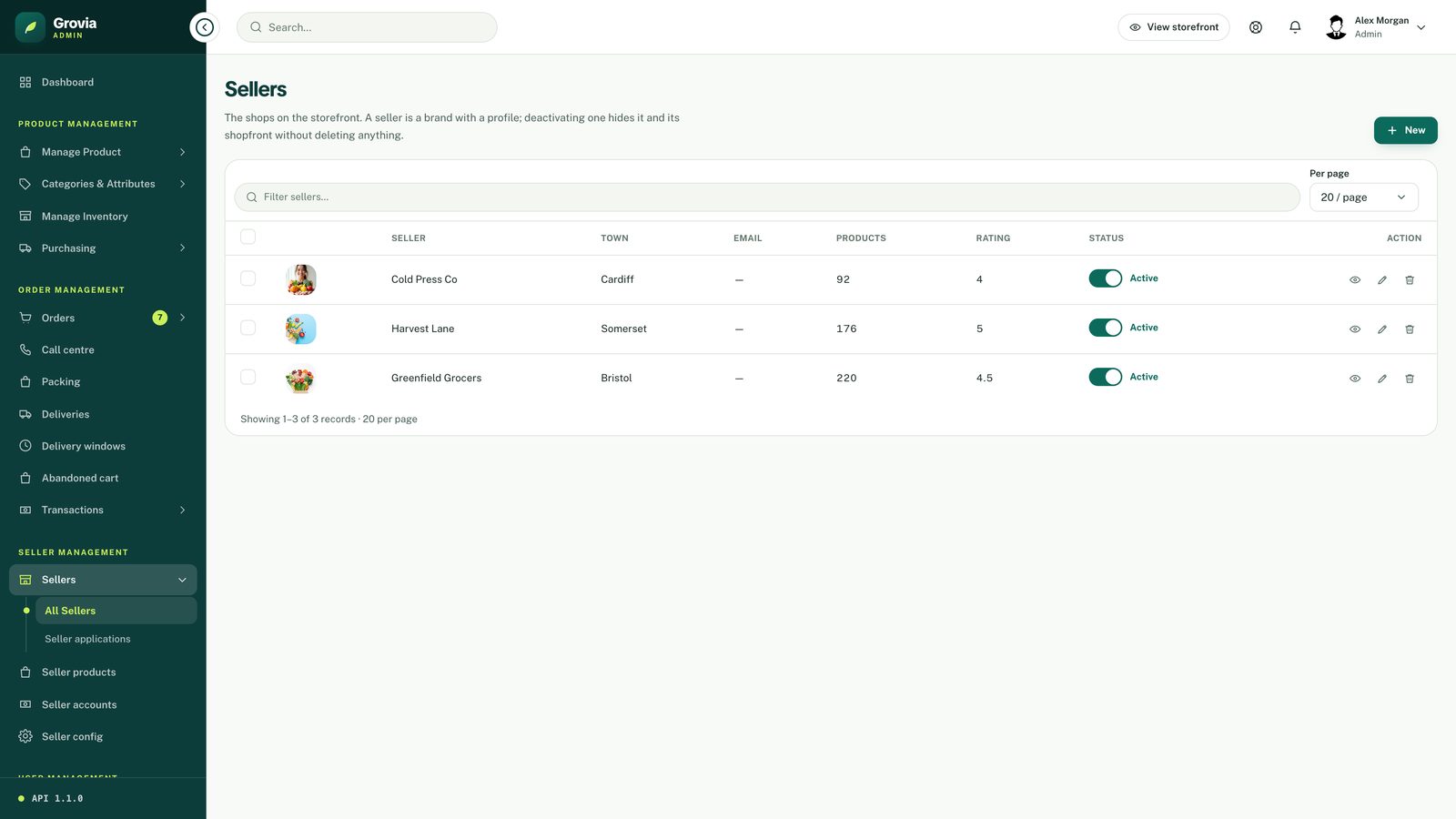
Sellers are brands with a profile. Sellers lists every shop with an inline Active switch — off hides the shop and its products from the storefront without deleting anything. The edit drawer has profile, contact and storefront sections; the eye icon opens a read-only details view with a link to the seller's products.
Seller applications are customers who applied from the storefront's /sell/apply — shop details, contact, address and bank account, with the guidelines accepted. Change the status from the badge menu: *Active* grants the seller role and opens the shop (the seller can now sign in through the Seller door); *Rejected* keeps the account a customer, needs a reason the applicant reads on sign-in, and is final — a rejected account cannot apply again; *Terminated* closes an active seller, also with a reason, hides the shop and drops the role. Admins can also create a seller for an existing account. Configuration → Sellers decides whether applications are open and whether they need approval.
Seller Management
Its own sidebar group. Sellers lists the shops and the applications. Seller products is the approval queue: everything a seller lists (or edits) waits here; approve to put it live under the seller's shop, or reject with a reason the seller reads — every decision stays on the product's approval history and the seller is emailed. Seller accounts shows, per seller, sales, commission, what they have earned, what accounts has dispatched, and what they can withdraw: only dispatched money is withdrawable, so *Dispatch* is the step that releases earnings to a seller's balance. Commission is 5 % by default (Configuration → Sellers) and can be overridden per seller from the same screen.
The seller portal
An active seller signs in through the Seller tab and lands on /seller: a dashboard (earnings after commission, available balance, orders, units sold, products, awaiting approval, low and out of stock, the year by month, recent orders, lines running low), Manage Product (their lines with the approval state; every new or edited product waits for the Grovia team's approval before it shows on the storefront), Manage Inventory (stock edited in place), Orders (only the orders containing their products, and only their lines), Product Reviews (published reviews, read-only), Earning (a month-by-month ledger and the balance), Withdraws (payout requests — one at a time, and only with complete bank details), Shop profile and Payout details, and a Seller guide. Sellers hold no admin permission; every read is scoped to their own shop by the API.
Every list, the same way
- Tick rows to delete in bulk; the eye, pencil and bin icons on each row view, edit and delete one record.
- Forms validate in the browser and again on the server; required fields carry a *.
- Lists with a status column have an inline switch or menu — no drawer needed to activate, deactivate, approve or mark paid.
Finance and content
- Withdrawals — seller payout requests. Move them Pending → Approved → Paid, or reject with a note.
- Tax rules — the rule marked *Default* is applied at checkout; without one,
TAX_RATEfrom.envapplies. - FAQ and Legal documents publish straight to the storefront; unpublished entries stay in the dashboard.
- Settings → Shop sets the delivery fee and free-delivery threshold that checkout charges. Settings → Maintenance takes the storefront offline.
Housekeeping
- API status lists every route the running API serves and checks the read routes live — one, a selection, or all — with latency in bands, the database/app split from
Server-Timing, observed p95 from the request log, and a *Why slow?* panel that names the likely cause (N+1 queries, missing index, large payload, external call, cold start) and the fix. A *Missing* verdict means the API process is an older build and needs a restart. - Abandoned carts shows idle account carts so you can follow up.
- DB status reports collection sizes against
MONGODB_STORAGE_QUOTA_MB. - Notifications is the staff inbox for orders, returns and support.