Third-party services
Step-by-step for Google sign-in, Stripe, ImageKit and email.
Social sign-in
Google, Facebook, GitHub, X and LinkedIn all use one OAuth 2.0 authorisation-code flow that the API runs end to end, so only the API holds provider secrets and one callback URL per provider serves the storefront and the dashboard alike. Google's ID token is verified against Google's JWKS.
- 01Create an OAuth appGoogle: console.cloud.google.com/apis/credentials → OAuth client ID → Web application. The root
.envhas the steps for Facebook, GitHub, X and LinkedIn above their keys. - 02Register the callback
<API>/api/auth/oauth/<provider>/callback—google,facebook,github,xorlinkedin. - 03Copy the keys
GOOGLE_CLIENT_ID/GOOGLE_CLIENT_SECRET, orOAUTH_<PROVIDER>_CLIENT_ID/_SECRET, in the API's environment. - 04Switch it onDashboard → Configuration → OAuth config. Google is on by default; the rest are off until you enable them.
http://localhost:8000/api/auth/oauth/google/callback
https://api.example.com/api/auth/oauth/google/callback
https://api.example.com/api/auth/oauth/github/callback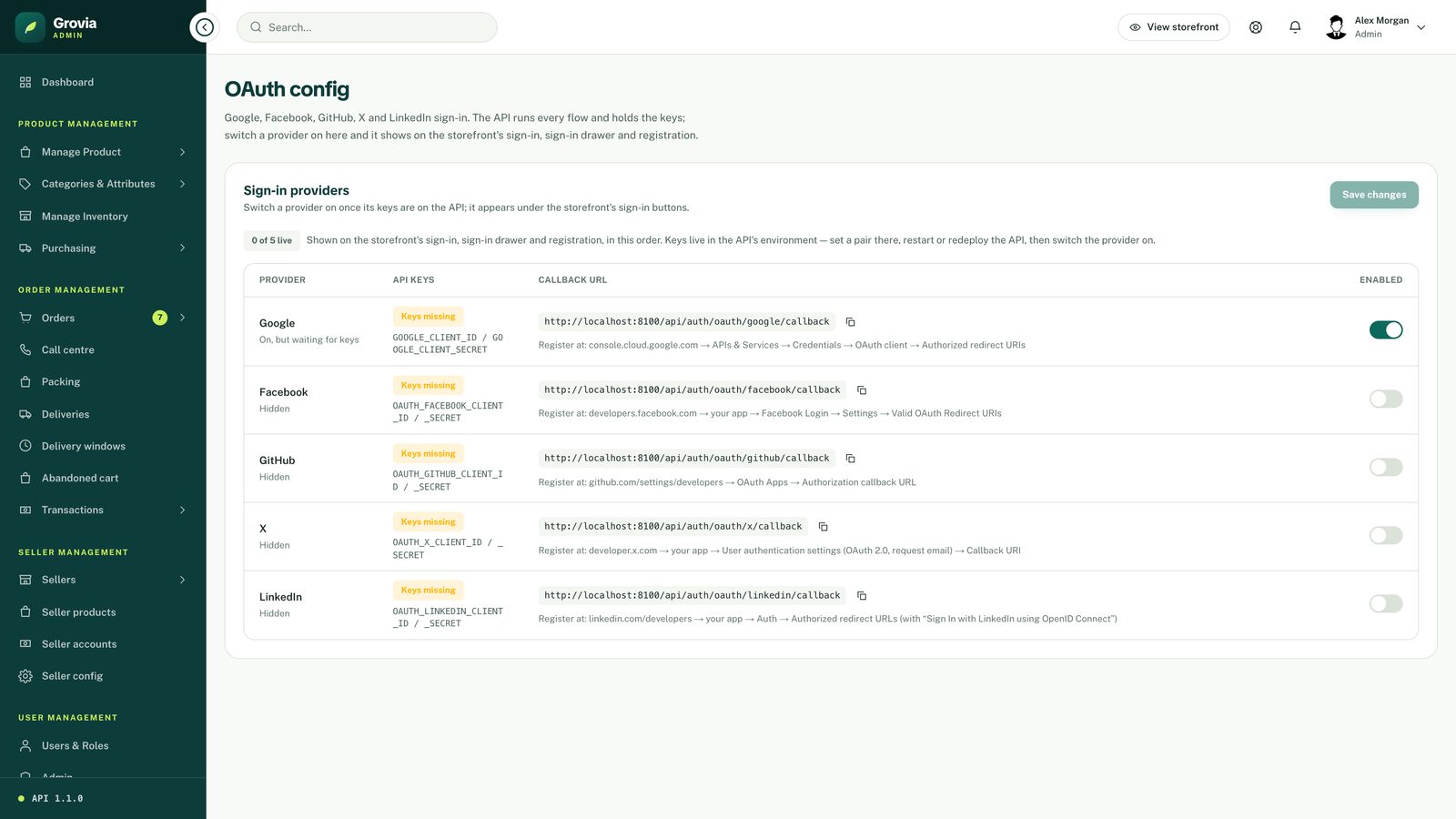
Stripe
- Copy the secret key from the Stripe dashboard into
STRIPE_SECRET_KEY. - Create a webhook endpoint pointing at
https://<your-api>/api/payments/webhook, subscribed tocheckout.session.completed, and put its signing secret inSTRIPE_WEBHOOK_SECRET. - Locally, forward events with the Stripe CLI:
pnpm --filter api run webhook.
express.json() in server.ts because Stripe signatures are computed over the raw body. Do not reorder that middleware.ImageKit and Cloudinary
Only the keys live in .env (IMAGEKIT_PRIVATE_KEY + IMAGEKIT_URL_ENDPOINT, or the three CLOUDINARY_* values). Which provider new uploads go to, the root folder they land under (grovia/ by default), how many images a product may carry and the size and format limits are set in Configuration → Media & uploads, and the *Test connection* button confirms the keys work before you upload anything.
Every upload is scoped under <root>/<kind>/<slug>/ — products, categories, brands, blogs, people, banners. Keep the root folder unique per store if the media account is shared.
pnpm run seed               # demo images → your ImageKit/Cloudinary, demo data → MongoDB
pnpm run seed -- --dry-run # check keys, database and pack firstAny SMTP provider works. Set SMTP_HOST, SMTP_PORT, SMTP_USER, SMTP_PASS and EMAIL_FROM. Every email the platform sends has its own switch under Configuration → Email Config, with a daily limit and a send log. Templates live in apps/api/utils/emailService.ts.